Quick Start
Get your NOVALINK kit setup in minutes.
The following setup will be used, but the same will apply to most UAV avionics systems:
Radiomaster TX16S MK3 Radio Controller
Pixhawk 2.4.8
Ardupilot + Mission Planner
Wireless Bridge for Mavlink
UART serial for CRSF + Mavlink
The Kit
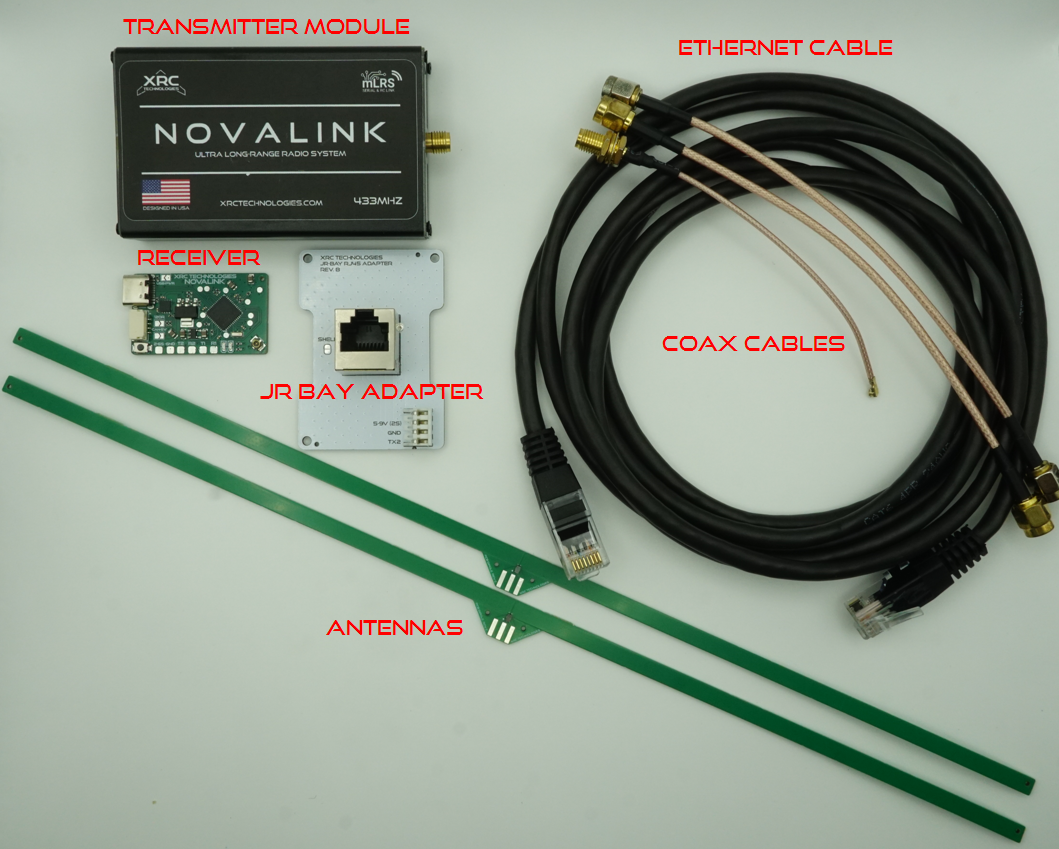
Your NOVALINK kit should come with the following items:
1x Transmitter Module
1x Receiver
1x JR Bay Adapter
2x 433MHz UHF Dipole Antenna
1x Ethernet Cable
1x IPEX Female to SMA Female Cable
2x SMA Male to SMA Male Cable
NOTE: Kits shipped before November 2026 do not include SMA Male to SMA Male cables
Transmitter Setup
Step 1
CRITICAL: If you are using an H7-based radio such as the TX16S MK3, please update your EdgeTX version to >=2.12.4.
Instructions for this may be found here.
Failure to be on verion 2.12.4 or later will result in the mLRS LUA script to fail.
Step 2
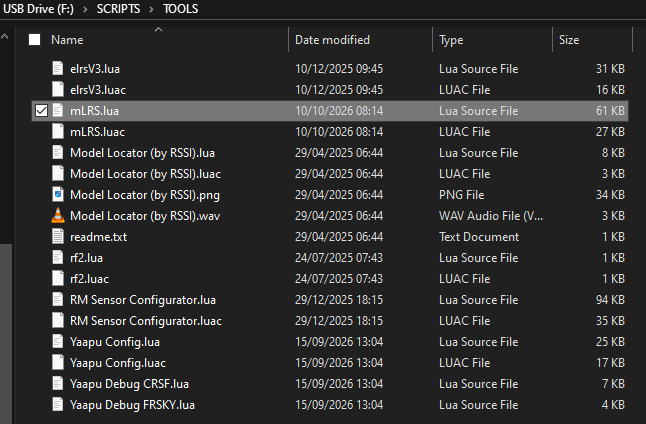
Download the latest mLRS LUA script from here.
For the TX16S MK3, this will be mLRS.lua
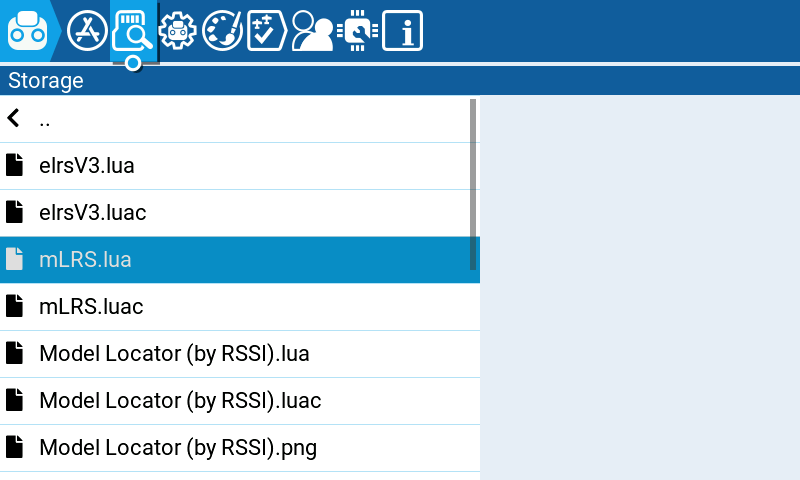
Place the mLRS.lua in the /SCRIPTS/TOOLS folder of your radio’s filesystem
Step 3
s Please ensure that the radio controller is powered off for this part.
CRITICAL: If you have purchased a NOVALINK kit before November 2026, please double-check that the USB power enable jumper is OPEN. Otherwise, if 2s power is applied from the radio controller and the USB port is plugged into a computer, there may be damage to the radio, the computer, or both:
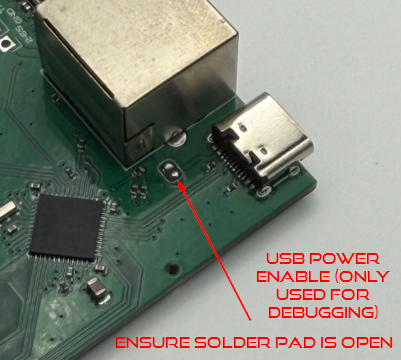
CRITICAL: To check solder pad location and access transmitter module PCB, only top 2 screws on each side need to be removed.
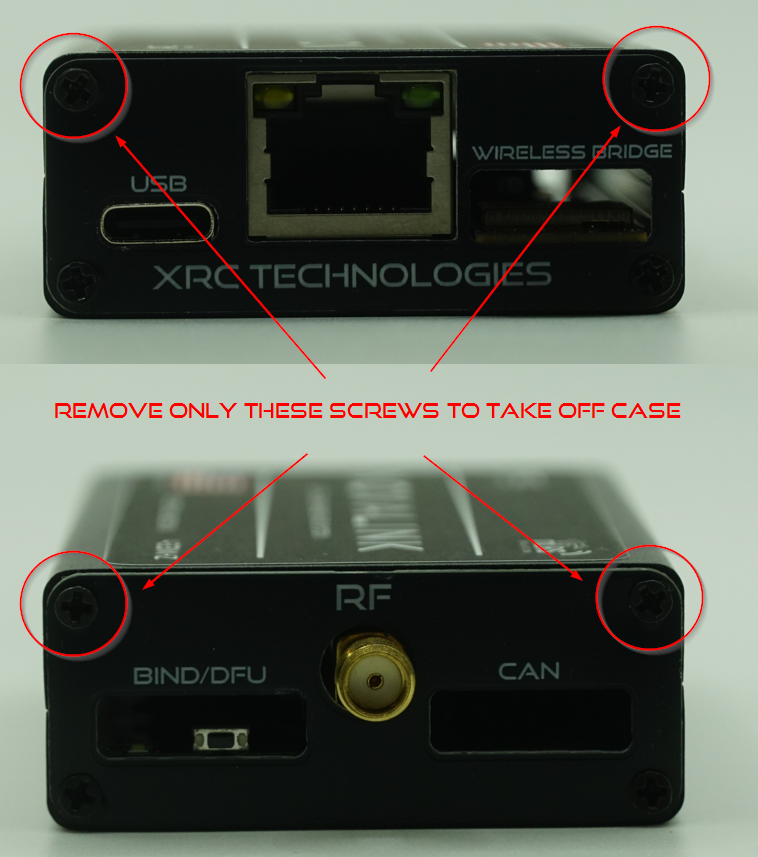
The transmitter module will connect to the radio controller via the ethernet cable. No other power cables are needed. NOVALINK is compatible with BOTH standard and crossover-type Ethernet cables.
NOVALINK was designed in such a way as to optimize RF performance. Many commercial radio controllers emit radiated electrical noise, so having at least a meter of separation greatly enhances RF performance and sensitivity, often doubling or tripling the effective range in certain circumstances!
Below is an overview of the transmitter module interface: 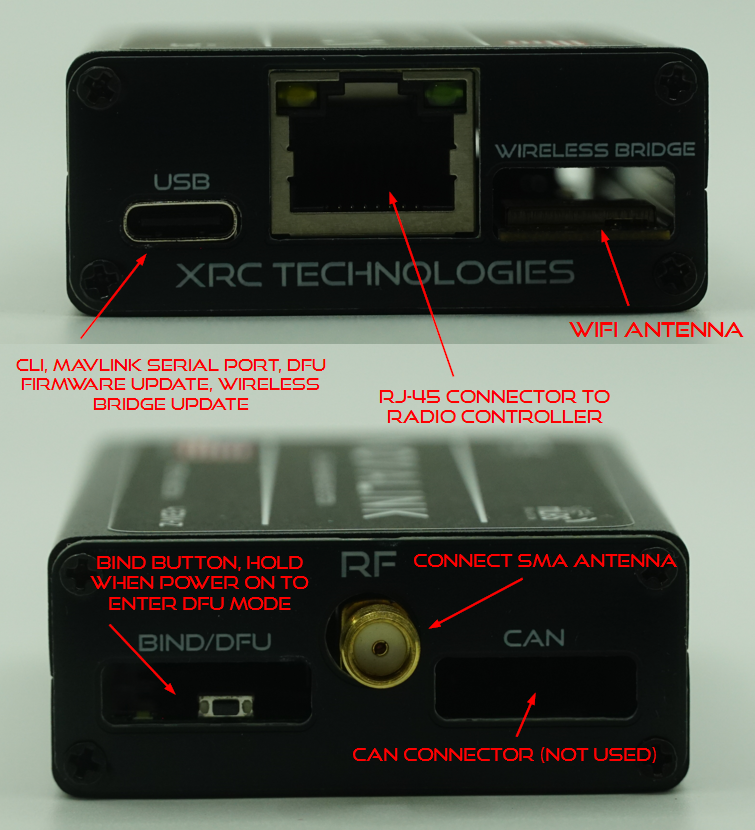
Insert the JR Bay Adapter into the radio controller. It is recommended to use the JR Bay Adapter Enclosure. 2 top pins may need to be bent depending on the JR Bay Adapter version:
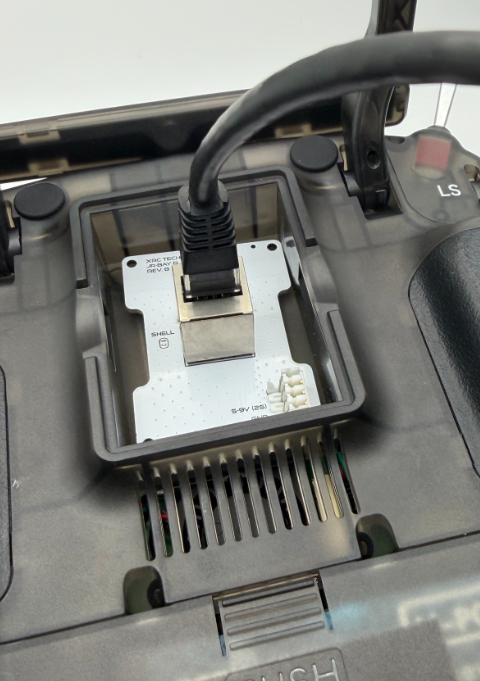
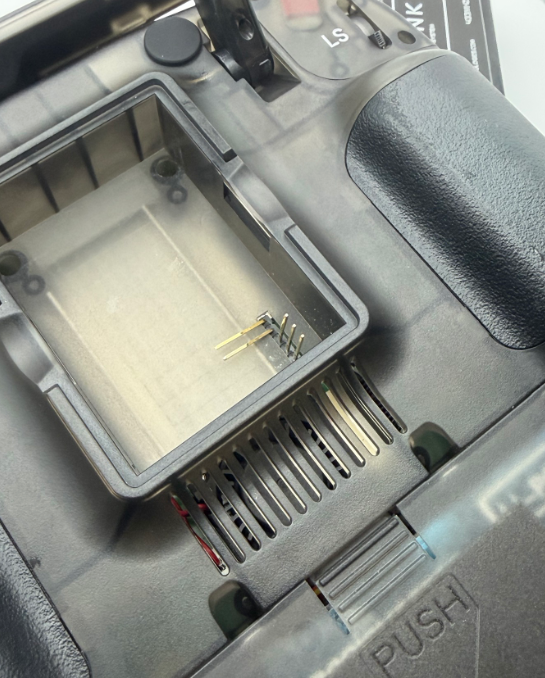
Use of recommended enclosure:
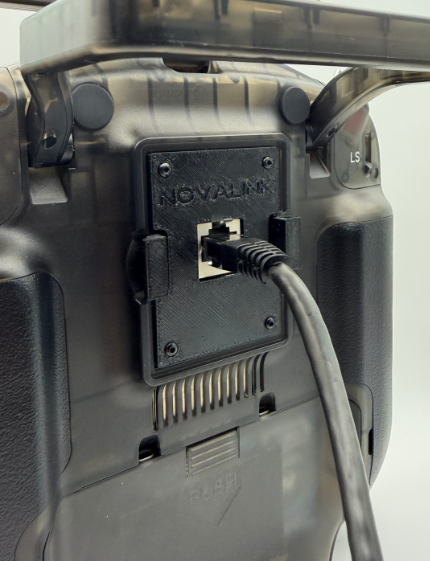
The 3D printed files for the JR Bay enclosure may be found below. Please ensure that the enclosure snaps fully into the JR bay, otherwise it may fall out.
Print Settings:
PETG
0.2mm Layer Height
50mm/s Speed
Support Only On Build Plate (Base)
Version 1:
- 7x M2x5mm Screws
The 3D model for the JR Bay Adapter is available for download below:
Step 4
Attach the antenna to the transmitter module using the SMA male-male cable as so:
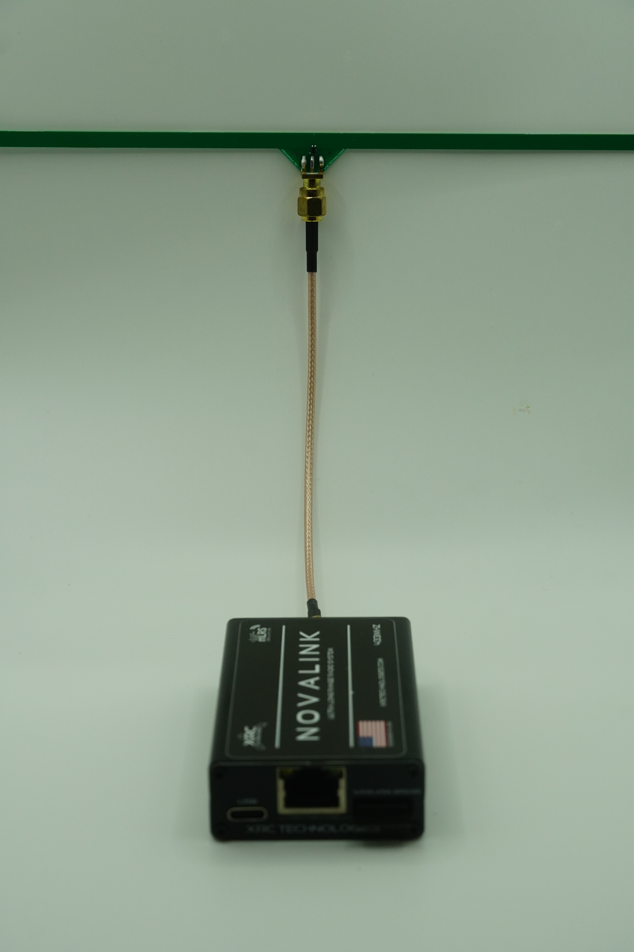
CRITICAL: Do NOT power on the transmitter module without either an antenna or a >1W 50Ω RF load.
Step 5
Plug the ethernet cable from the radio controller into the transmitter module:
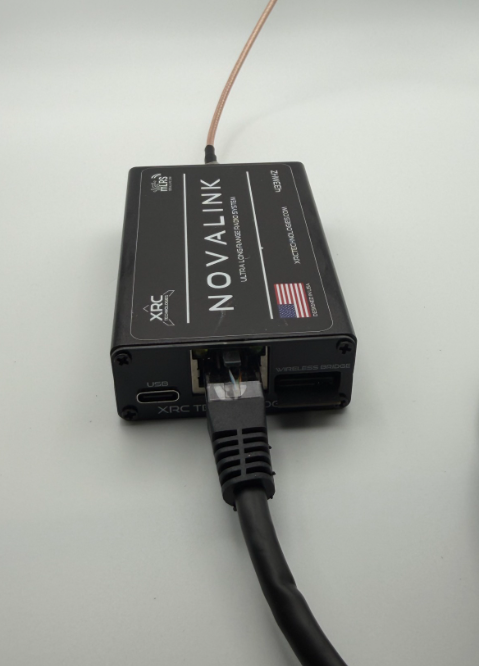
Step 6
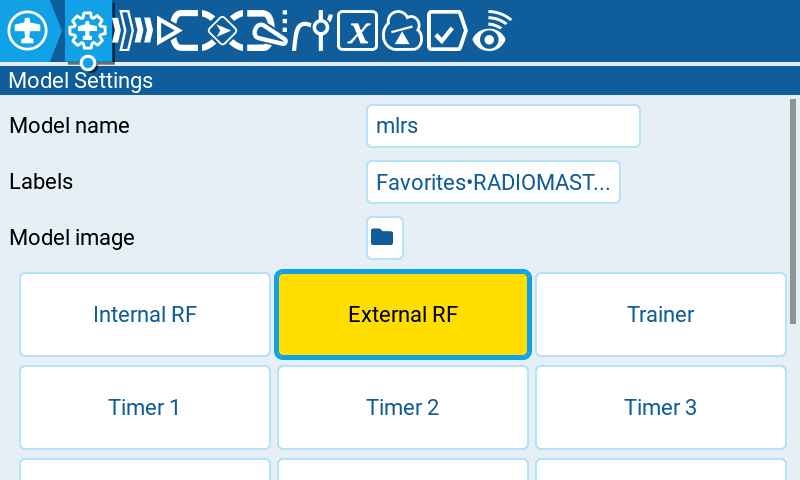
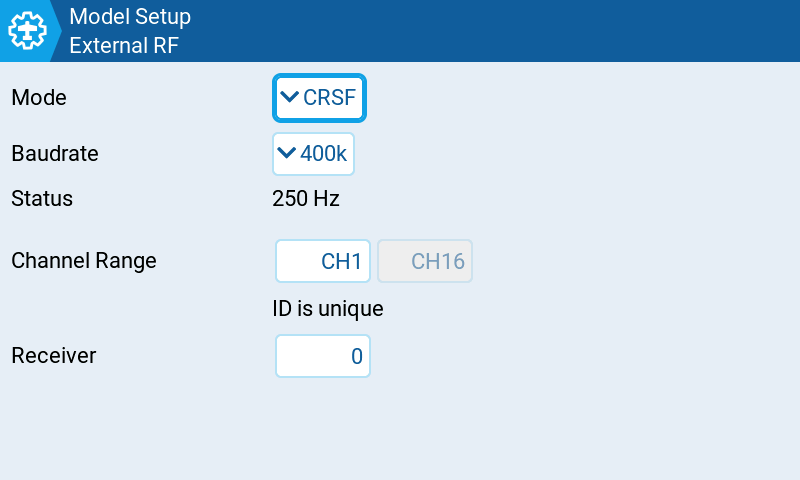
With the transmitter module connected to the radio, power on the radio and enable the internal RF and set:
Mode =
CRSFBaudrate =
400kReceiver ID =
0
Step 7
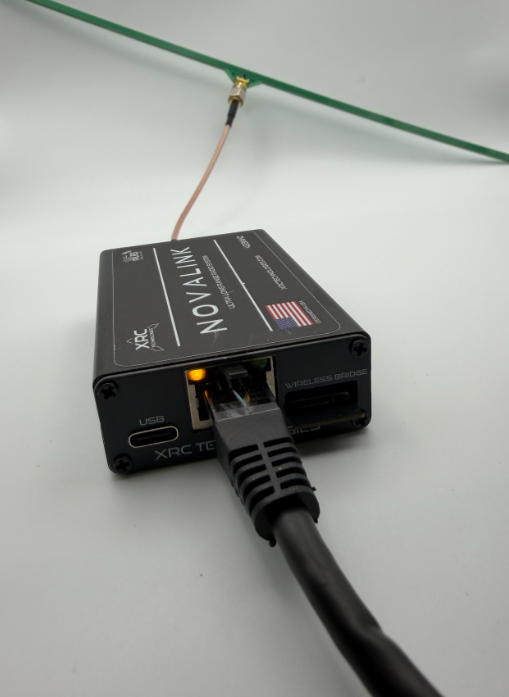
The yellow power LED should begin blinking on the transmitter module:
Step 8
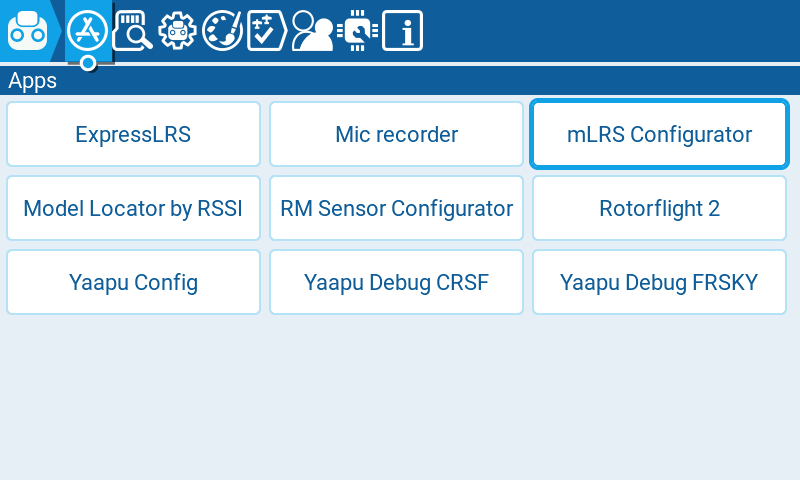
Open up the mLRS Configurator menu to try and connect with the transmitter module:
If all goes well, you should see the menu appear: 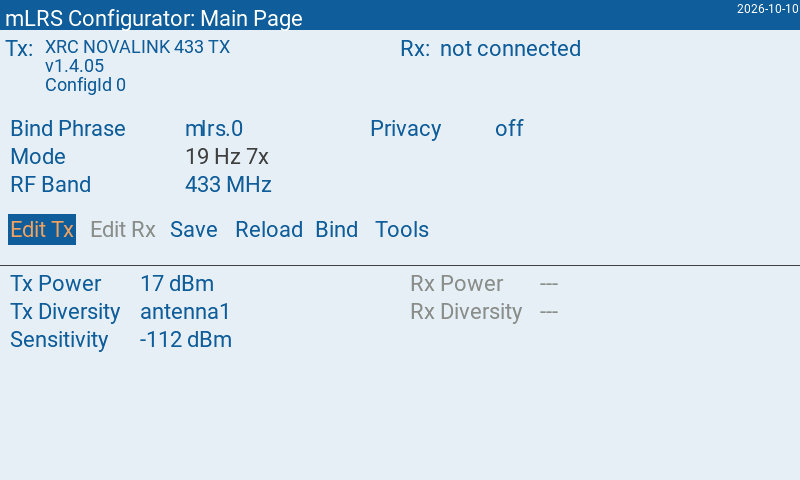
Select “Edit Tx” and for now, let’s set the following parameters: 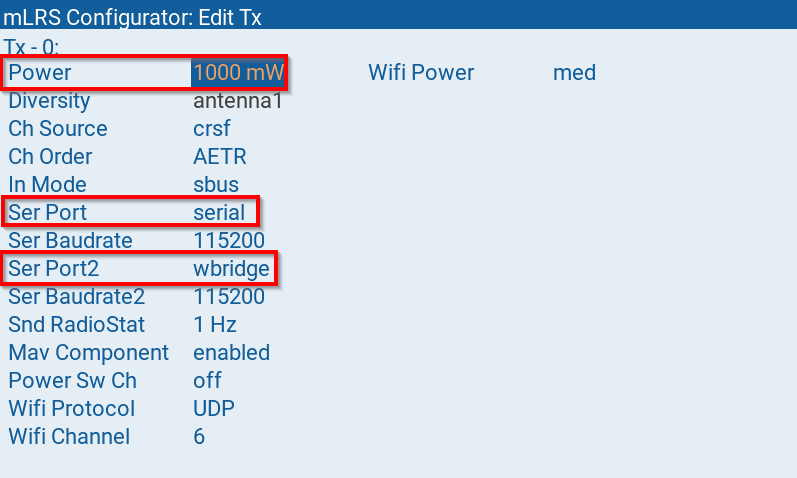
In particular, the settings boxed above should be selected. For testing, it’s better to put Power down to the lowest setting.
This sets the transmitter in the following state:
CLI on USB port
Enable wireless bridge with Mavlink. Wireless bridge LED on top of transmitter module should be blinking.
We are done setting up the transmitter for now. You may power off the transmitter system or leave it running.
Receiver Setup
Step 9
The NOVALINK mLRS receiver is compatible with standard serial ports for RC channels/Mavlink, DroneCAN, and FD-CAN.
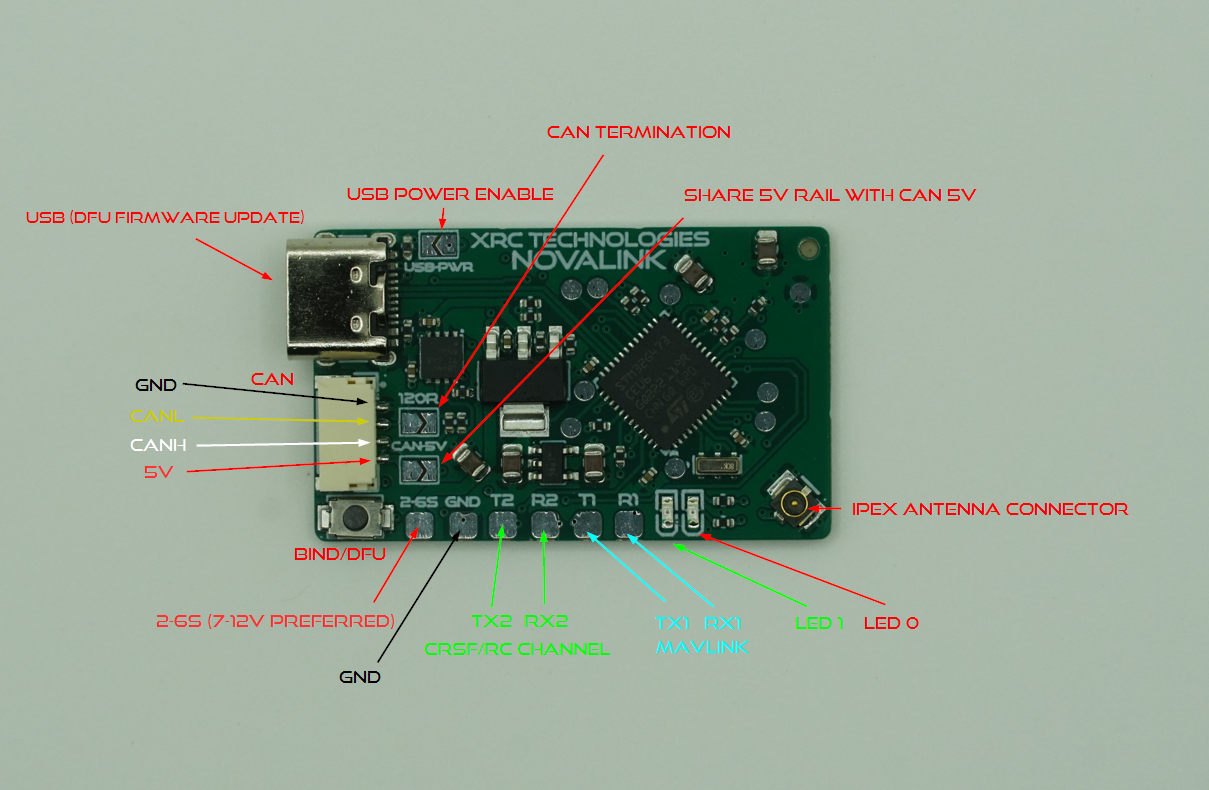
The Quick Start guide will demonstrate the standard serial port setup.
CRITICAL: Ensure USB-PWR and CAN-5V are open.
Connect the IPEX connector to the SMA connector, then to the antenna.
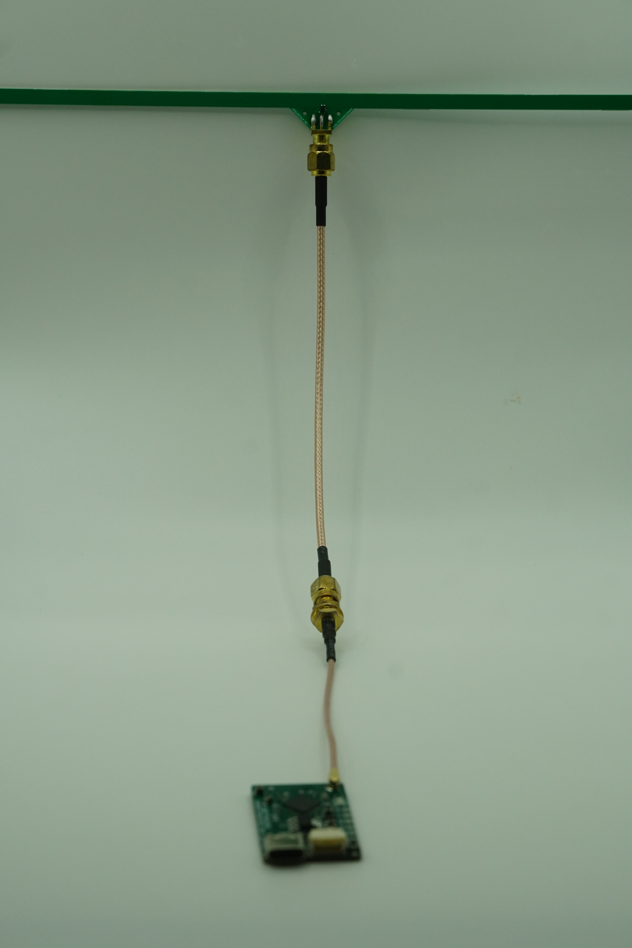
There are many ways to do this. A direct solder connection from IPEX to antenna would be ideal to reduce impedance mismatches and RF losses.
However, the options here are flexible and different setups may be used depending on the end-user. Please treat the IPEX connector with care, as it is fragile.
Step 10
Make the following connections:
| NOVALINK Receiver | Flight Controller |
|---|---|
| VCC (2-6s) | Power (10V ideal) |
| GND | GND |
| T2 | SERIAL2 RX (Telem 2 common, optional) |
| R2 | SERIAL2 TX (Telem 2 common) |
| T1 | SERIAL1 RX (Telem 1 common) |
| R1 | SERIAL1 TX (Telem 1 common) |
Any serial port practically can be used, but we use SERIAL1 for Mavlink and SERIAL2 for CRSF RC channels in this example.
While the NOVALINK receiver can handle up to 6s voltages, it is strongly recommended to not exceed 12V or operate below 7V to ensure proper RF power output. Please test and ensure stable operation of all RF equipment including thermal performance in aircraft before flying.
Step 11
Please proceed with the receiver powered OFF.
Assuming SERIAL1 -> Mavlink and SERIAL2 -> CRSF, connect the flight controller via USB to the computer and set the following parameters in Mission Planner:
Set
SERIAL1_PROTOCOLtoMAVLink2(2)Set
SERIAL1_BAUDto57600(57) (default mLRS “Rx Ser Baudrate”)Set
SERIAL2_PROTOCOLtoRCIN(23)Set
SERIAL2_BAUDto115200(115)Set
RC_PROTOCOLSto536Set
RSSI_TYPEto3

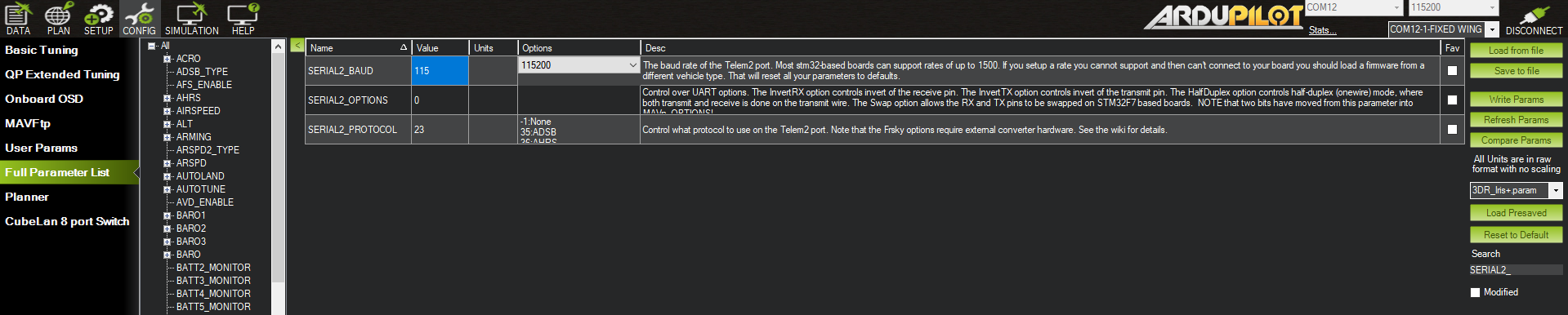
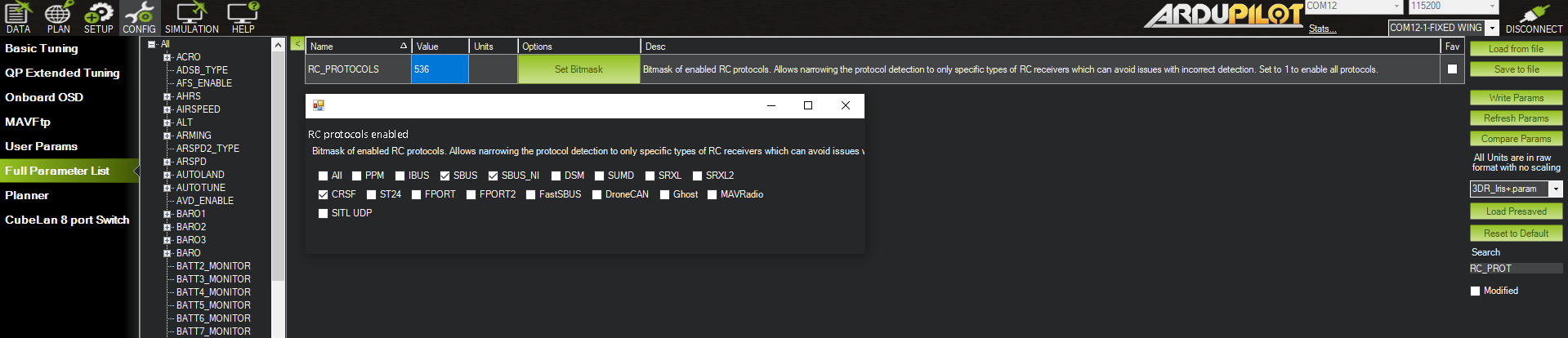
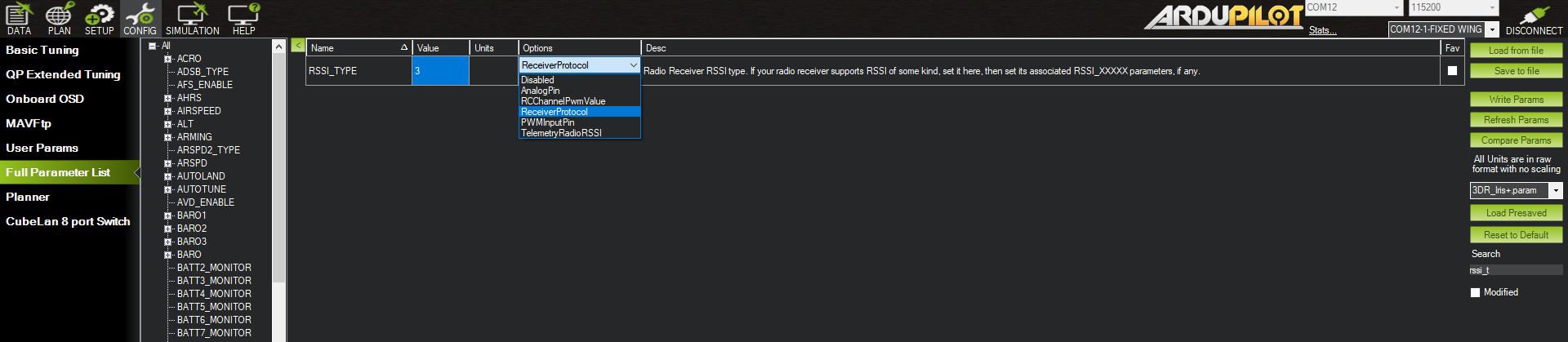
Remember to select "Write Parameters" in the top-right corner to apply settings and power cycle the flight controller.
Step 12
Power on your flight controller again and power ON the receiver.
Ensure that power is ON for the transmitter module and radio controller.
The yellow “power” light should turn off and the green “bound” light should be blinking steady after a few moments on the transmitter module.
If so, this means that the radio system is bound. If not, please press and hold the BIND button on the transmitter until the LEDs start alternate blinking.
Then press and hold the button on the receiver until the LEDs behave the same.
After a few moments, the system should be bound.
If still no binding, verify power to both transmitter and receiver, bring them closer together, and verify LUA script settings.
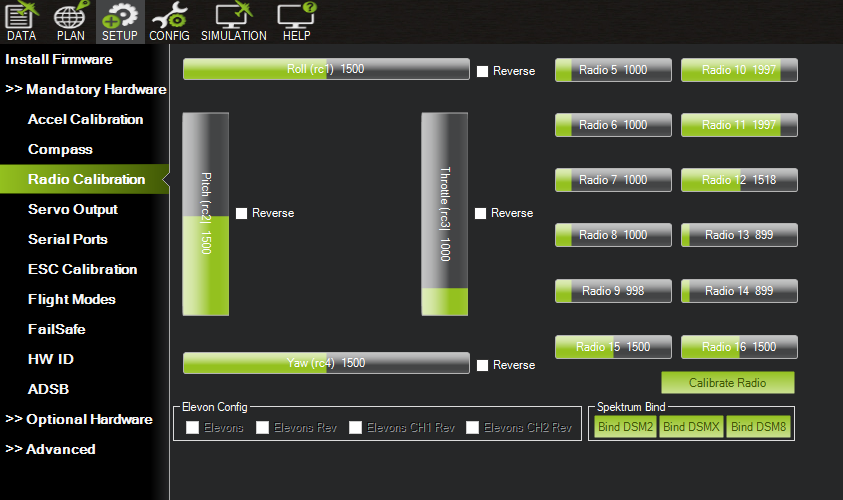
Once bound, open up Mission Planner and head to SETUP.
RC channels should now respond under Radio Calibration:
Step 13
The NOVALINK transmitter module comes with a built-in wireless bridge. As of October 2026, this is ONLY compatible with WiFi and NOT Bluetooth.
First, configure the Transmitter module as follows (via LUA):
The WiFi LEDD should start blinking.
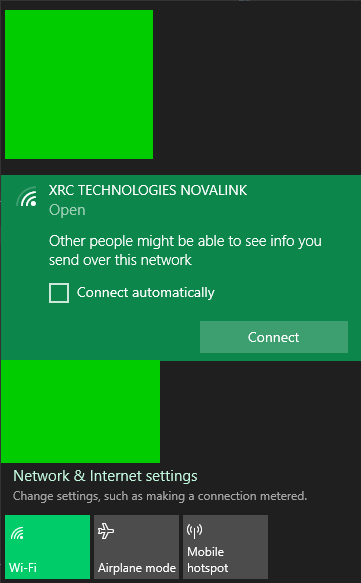
Upon power on, the transmitter module will create a WiFi hotspot with either the SSID XRC TECHNOLOGIES NOVALINK or something similar to mLRS-4983 AP UDP
Connect to this WiFi network. By default there is no password:
In Mission Planner, change connection settings to:
UDP
115200 Baud Rate
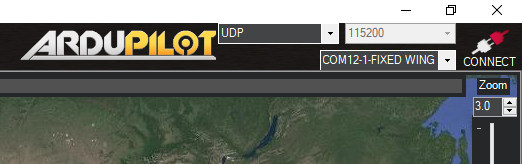
Press Connect
When it asks for Local port, enter 14550 then click OK
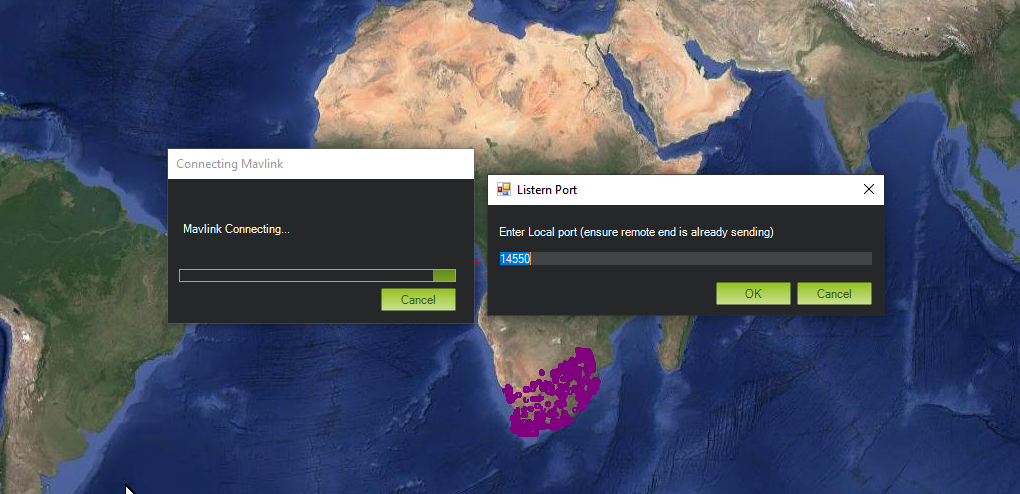
Params should now start loading via Mavlink. To test, try rotating the flight controller to see attitude change in HUD:
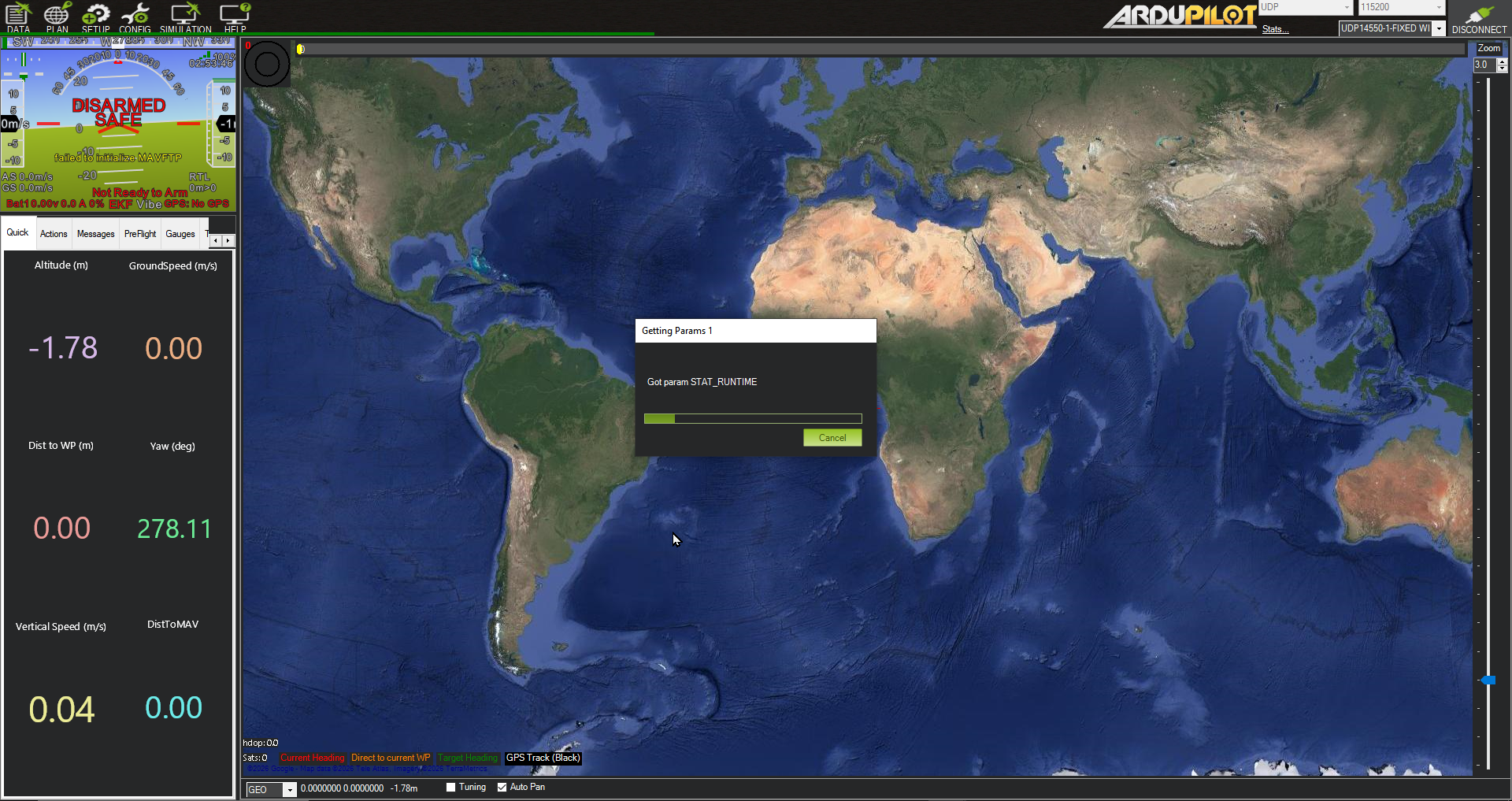
At 433MHz, the params will load slower than on a higher frequency. However, it should only take a minute or two before all params have loaded.
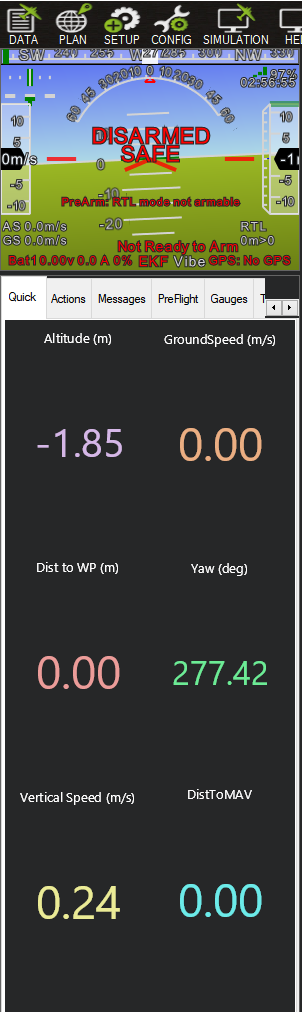
Congratulations 🥳 Your NOVALINK Radio System is all setup now. Happy flying!
In good line-of-sight conditions with proper antenna placement, NOVALINK should readily deliver ranges well beyond 100km.
As long as there is reasonable airflow over the receiver and input voltage is limited between 7-12V, there should be no need for an external heatsink.
Continue reading the documentation for additional setup options and advanced topics.
Please refer to the official mLRS Documentation for topics beyond the scope of NOVALINK.